
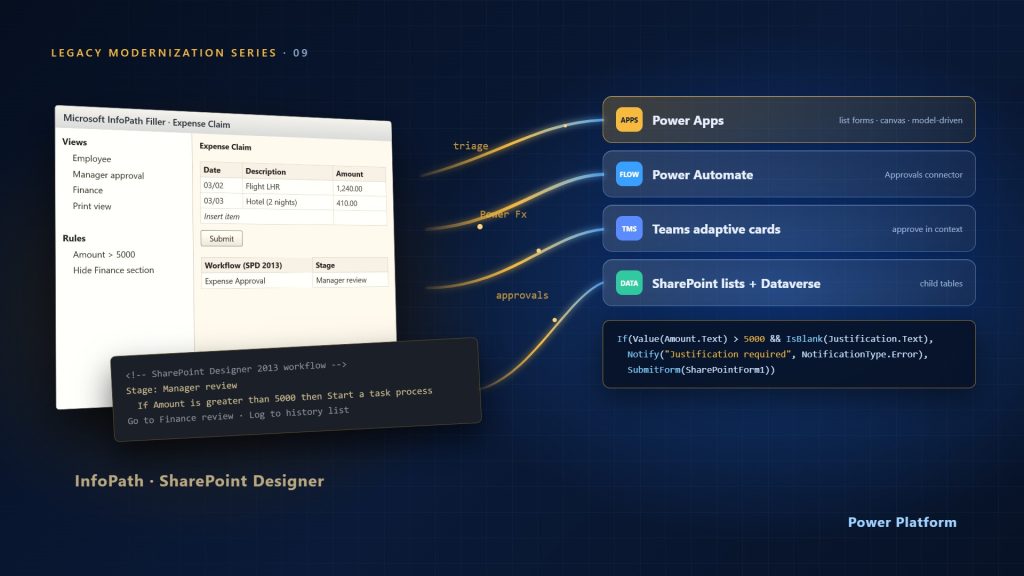
An InfoPath to Power Apps migration, paired with moving SharePoint Designer workflows to Power Automate, is how organizations rebuild the forms and approvals that once ran inside SharePoint. InfoPath Forms Services was retired from SharePoint Online by July 14, 2026, SharePoint 2013 workflows were retired there on April 2, 2026, and the InfoPath 2013 and SharePoint Designer 2013 clients reached end of support on July 14, 2026. Microsoft provides no InfoPath conversion tool, so each form and workflow is redesigned. This guide shows how to triage, map and rebuild them.
Technically reviewed by Harshita Pipaliya.
This is the ninth article in our Legacy Modernization Series and the companion to our SharePoint 2013/2016 to SharePoint Online migration strategy.
Executive summary
- InfoPath: “InfoPath Forms Services in SharePoint Online will be retired by July 14, 2026”, and “there is no migration tool provided” (Microsoft 365 message center MC616550). Publishing new or updated forms was blocked from May 18, 2026.
- Workflows: SharePoint 2010 workflows were removed from existing SharePoint Online tenants on November 1, 2020, and SharePoint 2013 workflows were “fully retired as of April 2, 2026”. Microsoft recommends “migrating to Power Automate or other supported workflow orchestration solutions” (Microsoft Support).
- Discovery tools: the open-source Microsoft 365 Assessment tool has an InfoPath Forms Services assessment that reports usage and a Power BI report for planning (PnP). The SharePoint Migration Tool (SPMT) can scan on-premises workflows and migrate some to Power Automate (Microsoft Learn).
- Our recommendation: inventory and triage first. Many forms can be retired or replaced with Microsoft Forms or a customized SharePoint list form. Rebuild complex forms as canvas or model-driven Power Apps, and rebuild workflows as Power Automate flows with the Approvals connector, designed around today’s process rather than a line-by-line copy.
Retirement timeline
| Date | Change | Source |
|---|---|---|
| August 1, 2020 / November 1, 2020 | SharePoint 2010 workflows off for new tenants, then removed from existing tenants | Microsoft Support |
| April 2, 2024 | SharePoint 2013 workflows off for new tenants | Microsoft Support |
| April 2, 2026 | SharePoint 2013 workflows retired for all tenants; SharePoint Designer 2013 can no longer create or run them against SharePoint Online | Microsoft Support |
| May 18, 2026 | Publishing new or updated InfoPath forms to SharePoint Online blocked | MC616550 |
| July 14, 2026 | InfoPath Forms Services retired from SharePoint Online; InfoPath 2013 and SharePoint Designer 2013 clients end of support | MC616550, Microsoft Learn |
On-premises, SharePoint Server Subscription Edition still supports SharePoint 2013 workflows, which Microsoft says “will remain supported beyond that date”. That buys time for SE customers, but the Designer client is out of support.
Why these migrations are harder than they look
- Hidden business rules. Validation, conditional formatting and calculated defaults in InfoPath, and branching in workflows, are often the only documentation of a process.
- XML data. InfoPath stores each submission as an XML file in a form library, with repeating sections and nested groups that do not map to flat list columns.
- Code-behind and data connections. Some forms call web services, SQL databases or user profile services.
- Long-running state. In-flight workflow instances and approval histories don’t transfer; they have to be completed or archived.
- Volume. Large estates have hundreds of forms and workflows, many unused.
Triage: retire, replace or rebuild
| Signal | Action |
|---|---|
| No submissions or runs in 12 months | Retire; archive the data |
| Simple survey or request, no workflow | Replace with Microsoft Forms plus a flow |
| Form tied to one SharePoint list, light logic | Customize the list form with Power Apps |
| Complex form, repeating sections, roles or external data | Rebuild as a canvas or model-driven Power App |
| Multi-stage approval | Rebuild in Power Automate with the Approvals connector |
| Regulated process with audit needs | Model-driven app on Dataverse with auditing |
This triage is our recommendation from delivery practice.
Choosing the target: Forms, Power Apps or model-driven apps
| Target | Best for | Data | Watch out for |
|---|---|---|---|
| Microsoft Forms | Surveys, simple requests | Forms responses, Excel or a list via Power Automate | Limited validation and layout |
| Power Apps list form | One list, field-level rules | SharePoint list | Can’t be shared separately; list permissions apply |
| Canvas app | Pixel-level UX, mobile, several data sources | SharePoint, Dataverse, SQL | Delegation limits on large lists |
| Model-driven app | Case-style processes, roles, audit | Dataverse | Premium licensing |
For deeper trade-offs see Power Apps canvas vs model-driven apps, SharePoint vs Dataverse vs Azure SQL and Power Apps delegation.
InfoPath feature mapping
| InfoPath | Power Apps equivalent |
|---|---|
| Views | Screens, or containers shown with Visible |
| Rules (validation) | Control Valid/BorderColor logic and checks in OnSave before SubmitForm |
| Rules (formatting) | Control properties such as Visible, DisplayMode, Fill with If() |
| Default values and calculated fields | Card Default properties, With() and Set() |
| Repeating tables and sections | Child list or Dataverse table, shown in a gallery |
| Data connections (web service, SQL) | Connectors, custom connectors or Dataverse virtual tables |
| User profile lookups | Office 365 Users connector |
| Form library with XML files | SharePoint list columns or Dataverse tables; archive the XML |
| Code-behind | Power Fx, Power Automate, or Azure Functions behind a custom connector |
Workflow action mapping
| SharePoint Designer | Power Automate |
|---|---|
| Start on item created/changed | SharePoint “When an item is created or modified” trigger |
| Start a task process / approval | Approvals connector: “Start and wait for an approval” |
| Collect data from a user | Approval with response options, or an adaptive card in Teams |
| Send an email | Office 365 Outlook “Send an email (V2)” |
| Pause until date / for duration | “Delay until” / “Delay” (mind the 30-day run limit) |
| Stages and Go to stage | State column plus a “Switch” or child flows |
| Call HTTP web service | HTTP action (premium) or a custom connector |
| Impersonation step | Service account connection or app-only access |
| Workflow history list | Run history, plus a log list or Dataverse table for audit |
Code translation patterns
The examples below are illustrative and simplified.
InfoPath rule: “If Amount is greater than 5,000, Manager approval is required and Justification cannot be blank.”
Power Apps list form, SharePointIntegration.OnSave:
If(
    Value(DataCardValue_Amount.Text) > 5000 && IsBlank(DataCardValue_Justification.Text),
    Notify("Justification is required for amounts over 5,000", NotificationType.Error),
    SubmitForm(SharePointForm1)
)
Form OnSuccess (as Microsoft documents, hide the form only after a successful save):
ResetForm(Self); RequestHide()
Repeating section rebuilt as a child list. Save the parent, then patch each line with the parent ID:
ForAll(
    colLines,
    Patch('Expense Lines', Defaults('Expense Lines'),
        { ClaimID: SharePointForm1.LastSubmit.ID, Description: ThisRecord.Description, Amount: ThisRecord.Amount })
)
Approval flow condition (Power Automate expression for the escalation branch):
@greater(triggerOutputs()?['body/Amount'], 5000)
Recommended target architecture
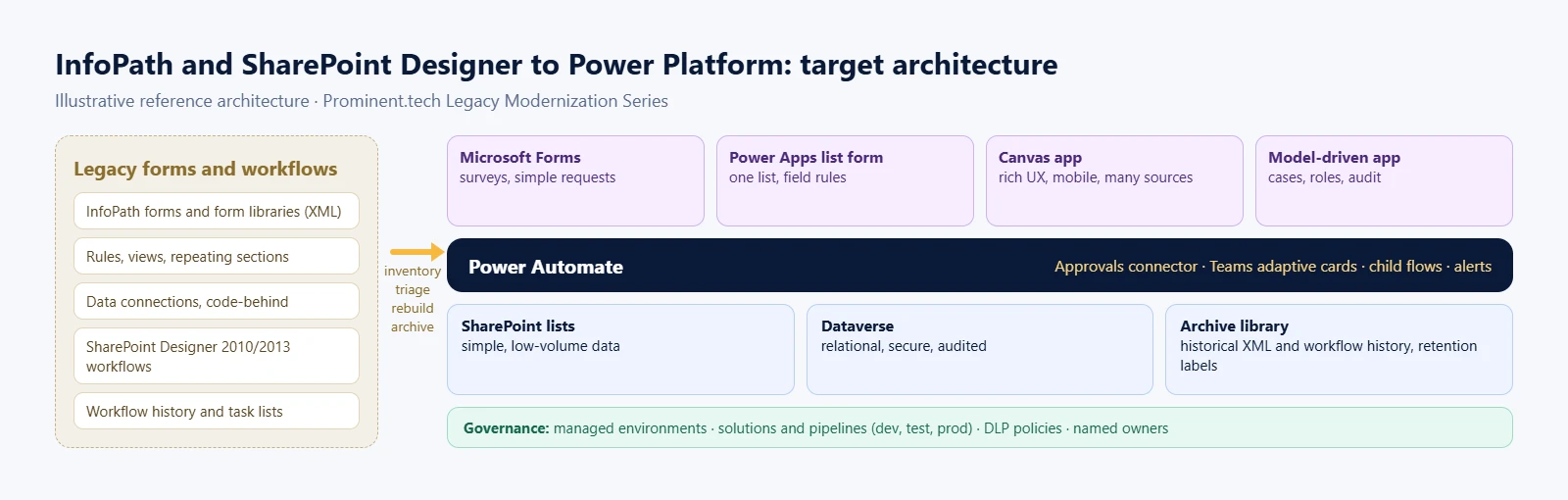
- Data first. SharePoint lists for simple, low-volume forms; Dataverse for relational, high-volume or audited processes.
- One front end per job. Microsoft Forms for surveys, Power Apps list forms for single-list forms, canvas or model-driven apps for complex processes.
- Power Automate for orchestration. Approvals connector, Teams adaptive cards, and child flows for reusable steps. See our Power Automate approval workflow guide.
- Managed environments and solutions. Build in solutions, move through dev, test and production with pipelines, and apply data loss prevention policies.
- Archive the past. Keep historical InfoPath XML and workflow history in a read-only library with retention labels.
Got hundreds of InfoPath forms and SharePoint Designer workflows? Talk to our Power Platform team about an inventory and rebuild plan.
Step-by-step migration roadmap
- Inventory (1 to 3 weeks): run the Microsoft 365 Assessment tool for InfoPath in SharePoint Online, and SPMT workflow scan or farm scripts on-premises. Record usage, owners and data connections.
- Triage: retire, replace or rebuild, using the table above.
- Design the data model: list or Dataverse tables, child tables for repeating sections, choice columns and lookups.
- Rebuild in priority order: business-critical and high-volume first; template the common patterns.
- Migrate data: move historical submissions you need into the new tables; archive the rest as XML.
- Parallel run and cutover: run old and new side by side where the platform still allows it, drain in-flight approvals, then switch links.
- Decommission: remove InfoPath content types, form libraries and workflow associations.
Security, licensing and governance
- Permissions: a customized list form “can’t be manually shared”; users inherit access from the list, so fix list permissions first.
- Service accounts: replace Designer impersonation steps with dedicated connections and least privilege.
- Licensing: standard SharePoint and Office 365 connectors are included with many Microsoft 365 plans; Dataverse, premium connectors and HTTP actions need Power Apps or Power Automate premium licences. Check current Microsoft licensing for your plan.
- Governance: managed environments, DLP policies, solution-based ALM and named owners for every app and flow.
Testing, deployment and support
Testing
- Build a test matrix from each InfoPath rule and workflow branch, and test every path.
- User acceptance testing with the people who submit and approve, including mobile.
- Check delegation warnings on lists that will exceed 2,000 items.
Deployment
- Package apps and flows in solutions; deploy with Power Platform pipelines or Azure DevOps.
- Microsoft notes there is “no automated method” to copy a customized list form between environments, so plan list forms per environment or use a canvas app in a solution.
Support
- Monitor flow failures with alerts; review run history and approval SLAs monthly.
Request an estimate
Cost and timeline depend on your application, data and integrations, so we estimate each project individually rather than publish price ranges. Power Platform licences are extra. Cost drivers: number of forms and workflows, rule complexity, data connections, data migration and licensing choices.
Request an estimate for your application, or read legacy application modernization cost and ROI to build the business case. See also Power Apps vs custom development.
FAQs
Can InfoPath forms be converted to Power Apps automatically?
No. Microsoft says there is no migration tool for InfoPath. Each form is redesigned in Power Apps, Power Automate or Microsoft Forms, although discovery tools help you find and prioritize forms.
Do InfoPath forms still work in SharePoint Online?
No. InfoPath Forms Services was retired from SharePoint Online by July 14, 2026, and users can no longer use InfoPath forms there.
What replaces SharePoint Designer workflows?
Power Automate. SharePoint 2013 workflows were retired in SharePoint Online on April 2, 2026. Rebuild approvals with the Approvals connector and use Teams adaptive cards where people already work.
Can SPMT migrate our workflows?
SPMT can scan on-premises workflows and migrate some of them to Power Automate. Unsupported actions are reported as errors or converted to placeholder actions, so review and test every migrated flow.
Should we use SharePoint lists or Dataverse?
SharePoint lists suit simple, low-volume forms. Dataverse suits relational data, high volumes, role-based security and auditing, but needs premium licences.
What happens to our old InfoPath data?
Migrate the submissions you still need into list columns or Dataverse tables, and archive the original XML files in a read-only library with retention labels.
How long does an InfoPath and workflow migration take?
Small estates can move in one to two months. Large estates with external data and regulated processes often take six to twelve months.
Conclusion
InfoPath and SharePoint Designer workflows are gone from SharePoint Online, and there is no automatic conversion. Treat it as a chance to simplify: inventory, retire what nobody uses, choose the lightest target that fits each form, and rebuild approvals in Power Automate with proper environments, solutions and governance.
Previous in this series: SharePoint 2013/2016 to SharePoint Online. Next: SQL Server 2008/2012 to Azure SQL.
Related services: Power Platform · SharePoint · Microsoft 365 · Legacy Software Modernization · API & System Integration
Sources
- Microsoft 365 message center (archived at mc.merill.net), MC616550: InfoPath 2013 client and InfoPath Forms Services in SharePoint Online will reach end of support in July 2026
- Microsoft Support, SharePoint 2013 workflow retirement
- Microsoft Support, SharePoint 2010 workflow retirement
- Microsoft Learn, Ending Support in 2026
- PnP, InfoPath Forms Services Assessment, Microsoft 365 Assessment tool
- Microsoft Learn, Migrate workflows to Power Automate with SPMT
- Microsoft Learn, Understand SharePoint forms integration
Plan your InfoPath and workflow migration
Prominent.tech helps teams inventory, triage and rebuild InfoPath forms and SharePoint Designer workflows as Power Apps and Power Automate solutions, with data models, environments and governance set up properly. Talk to our Power Platform team or explore our Power Platform services.