
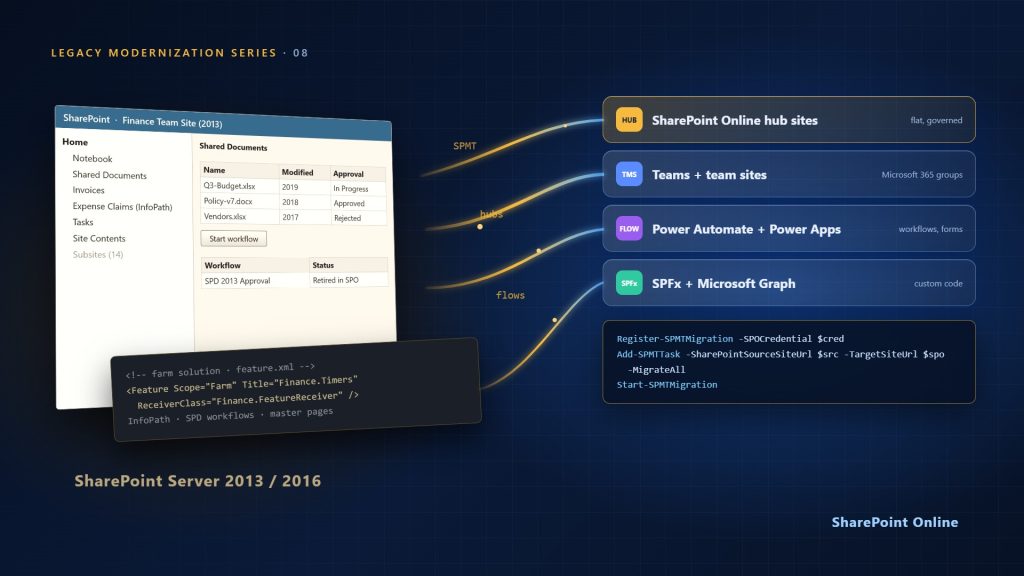
A SharePoint 2016 to SharePoint Online migration (or a move from SharePoint 2013) is now a support issue, not a someday project. SharePoint Server 2013 left extended support in April 2023, and SharePoint Server 2016 and 2019 followed on July 14, 2026. In SharePoint Online, SharePoint 2013 workflows, SharePoint Add-ins and InfoPath Forms Services have also been retired. This guide covers the strategy: choosing the target, deciding what happens to each customization, picking tools, and sequencing the move.
Technically reviewed by Harshita Pipaliya.
This is the eighth article in our Legacy Modernization Series. For the execution detail on permissions, metadata and cutover, see our companion SharePoint Online migration checklist.
Executive summary
- On-premises support: SharePoint Server 2016 and 2019 reached end of support on July 14, 2026 (Microsoft Learn). SharePoint Server 2013 extended support ended on April 11, 2023 (Microsoft Learn).
- SharePoint Online retirements: SharePoint 2013 workflows were “fully retired as of April 2, 2026” in Microsoft 365 (Microsoft Support). SharePoint Add-ins stopped working for all tenants on April 2, 2026 (Microsoft Learn). InfoPath Forms Services in SharePoint Online was retired by July 14, 2026, and Microsoft says “there is no migration tool provided” (message center MC616550).
- Tooling: Microsoft’s free SharePoint Migration Tool (SPMT) supports SharePoint Server 2010, 2013, 2016 and 2019 sources and can scan and migrate some workflows to Power Automate (Microsoft Learn).
- Our recommendation: treat this as a content and solution modernization, not a lift-and-shift. Inventory first, retire what nobody uses, rebuild workflows and forms on Power Platform, rebuild farm solutions on SharePoint Framework (SPFx) or Azure, and move content in waves with a flat, hub-based information architecture.
Support status in 2026
| Item | Status (as of November 2026) |
|---|---|
| SharePoint Server 2013 | Extended support ended April 11, 2023 |
| SharePoint Server 2016 and 2019 | End of support July 14, 2026 |
| SharePoint Server Subscription Edition | Supported under the Modern Lifecycle Policy |
| SharePoint Designer 2013 and InfoPath 2013 clients | End of support July 14, 2026 |
| SharePoint 2013 workflows in SharePoint Online | Retired April 2, 2026 (no extension option) |
| SharePoint Add-ins in SharePoint Online | Stopped working for all tenants April 2, 2026 |
| InfoPath Forms Services in SharePoint Online | Retired by July 14, 2026 |
| SharePoint 2013 workflows on Subscription Edition | Microsoft says they “will remain supported beyond that date” |
What this means: an unsupported farm no longer receives security updates, and the most common legacy customizations (2013 workflows, InfoPath, add-ins) cannot simply be moved to SharePoint Online and kept running. They have to be rebuilt or retired.
Why SharePoint 2013/2016 migrations stall
- Years of unmanaged sprawl. Deep subsite trees, duplicate libraries and sites nobody owns.
- Custom code. Full-trust farm solutions, custom master pages, timer jobs, event receivers and web parts that SharePoint Online does not run.
- Business processes hidden in workflows and forms. SharePoint Designer workflows and InfoPath forms often encode approval rules nobody has documented.
- Broken permission models. Broken inheritance at item level, AD groups that no longer map cleanly, and unique permissions in the thousands.
- Long paths and blocked file types. Path length, special characters and very large lists surface late if they are not scanned early.
Target options: SharePoint Online or Subscription Edition
| Option | Best for | Trade-offs |
|---|---|---|
| SharePoint Online (Microsoft 365) | Most organizations; Teams, OneDrive, Copilot and Power Platform integration | Customizations must be rebuilt; data residency and tenant governance to plan |
| SharePoint Server Subscription Edition | Regulatory or sovereignty needs, disconnected networks, heavy full-trust code you cannot rebuild yet | You still run servers, patching and backups; fewer cloud-only features |
| Hybrid (SE + SharePoint Online) | Phased moves where some sites must stay on-premises for a period | Two platforms to govern; hybrid search and identity to configure |
Our recommendation: SharePoint Online is the default target. Choose Subscription Edition only for a documented constraint, and plan it as a supported holding position rather than the end state. A move from 2013 to Subscription Edition is a database-attach upgrade path through intermediate versions, so check Microsoft’s upgrade documentation for your exact source.
Customization disposition: what happens to each item
| Legacy item | SharePoint Online target | Notes |
|---|---|---|
| Classic team and publishing sites | Modern team or communication sites, joined to hub sites | Flatten subsites into separate site collections where they serve different audiences |
| Classic pages and web parts | Modern pages and web parts | Page transformation tooling from the PnP community can help; review results |
| Custom master pages and CSS | Site themes, header/footer options, SPFx application customizers | Branding is deliberately limited in modern sites |
| Full-trust farm solutions | SPFx web parts and extensions, Azure Functions, Microsoft Graph | Farm solutions do not run in SharePoint Online |
| SharePoint Add-ins | SPFx solutions, Microsoft Graph, Power Platform | Add-ins stopped working in SharePoint Online on April 2, 2026 |
| SharePoint 2010/2013 workflows | Power Automate | SPMT can scan and migrate some workflows; expect rework and testing |
| InfoPath forms | Power Apps, Power Automate or Microsoft Forms | No migration tool; redesign, covered in our next article |
| Timer jobs and event receivers | Azure Functions, webhooks, Power Automate triggers | Use app-only access with least privilege |
| Business Connectivity Services | Power Apps connectors, Dataverse, Microsoft Graph connectors | Decide where the data should live: see SharePoint vs Dataverse vs Azure SQL |
| Search customizations | Modern search, Microsoft Search verticals, Graph connectors | Rebuild result sources and verticals deliberately |
This table is our recommendation from delivery practice, based on what SharePoint Online supports.
Migration tools
| Tool | Use it for | Limits to know |
|---|---|---|
| SharePoint Migration Tool (SPMT) | Free Microsoft tool for SharePoint Server 2010/2013/2016/2019 and file shares; site, list and permission migration; workflow scan and migration to Power Automate | Microsoft notes sites “that don’t use any coding or third-party tools” migrate; custom code needs rebuilding |
| SPMT PowerShell | Scripted, repeatable waves and incremental re-runs | Run from a machine that can reach both farm and tenant |
| Migration Manager (SharePoint admin center) | Centralized file share and cloud-to-cloud migrations with agents | Check current Microsoft documentation for SharePoint Server source support |
| Third-party migration tools | Complex restructuring, large estates, detailed pre-migration reporting | Licensing cost; validate results the same way |
Microsoft’s guidance is on Microsoft Learn: SPMT supported features.
Scripted migration example
The example below is illustrative and simplified. It follows the pattern in Microsoft’s SPMT PowerShell documentation: register a migration, add tasks, then start it. Test on a pilot site first.
# SPMT PowerShell module (installed with the SharePoint Migration Tool)
Import-Module Microsoft.SharePoint.MigrationTool.PowerShell

$spoCred = Get-Credential -Message "SharePoint Online admin"
$spCred  = Get-Credential -Message "SharePoint 2016 farm account"

Register-SPMTMigration -SPOCredential $spoCred -Force

# One task per site; run in waves and re-run for incremental changes
Add-SPMTTask -SharePointSourceCredential $spCred `
             -SharePointSourceSiteUrl "https://intranet.contoso.local/sites/finance" `
             -TargetSiteUrl "https://contoso.sharepoint.com/sites/finance" `
             -MigrateAll

Start-SPMTMigration
Inventory first. Before any content moves, run a farm inventory from the SharePoint Management Shell. This sketch lists every site with its template, last modified date and site collection size so you can decide what to retire:
Add-PSSnapin Microsoft.SharePoint.PowerShell -ErrorAction SilentlyContinue

Get-SPSite -Limit All | ForEach-Object {
    $site = $_
    $site.AllWebs | ForEach-Object {
        [pscustomobject]@{
            Url          = $_.Url
            Template     = $_.WebTemplate
            LastModified = $_.LastItemModifiedDate
            SiteCollMB   = [math]::Round($site.Usage.Storage / 1MB, 1)
            Lists        = $_.Lists.Count
        }
        $_.Dispose()
    }
    $site.Dispose()
} | Export-Csv .\sharepoint-inventory.csv -NoTypeInformation
For workflows, SPMT has a scan-only mode that produces a workflow scan report before you migrate anything.
Recommended target architecture
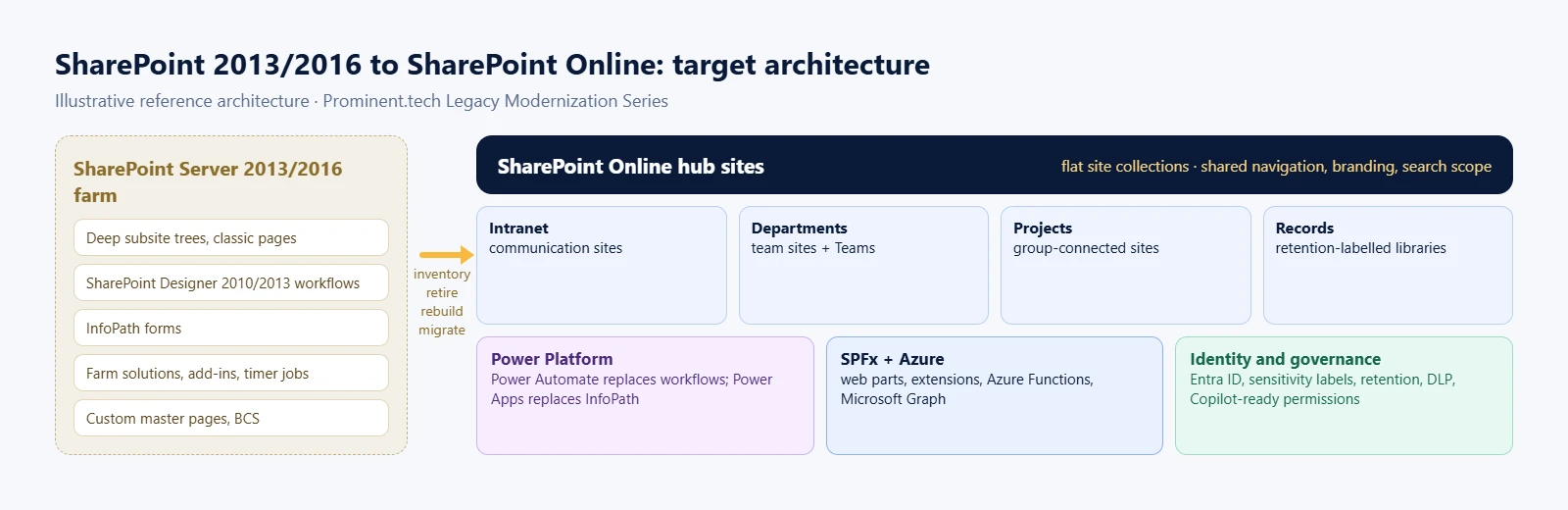
- Flat information architecture. Each team or department gets its own site collection, connected through hub sites for navigation, branding and search scope.
- Communication sites for the intranet, team sites connected to Microsoft 365 groups and Teams for collaboration.
- Power Platform for process. Power Automate replaces workflows; Power Apps replaces InfoPath and custom forms. See our Power Automate approval workflow guide.
- SPFx and Azure for custom code. Web parts and extensions in SPFx; back-end logic in Azure Functions calling Microsoft Graph.
- Governance built in. Sensitivity labels, retention policies, guest access settings and site lifecycle policies from day one.
Running SharePoint 2013 or 2016 past end of support? Talk to our Microsoft 365 team about an inventory-led migration plan.
Step-by-step migration roadmap
- Inventory and assess (2 to 4 weeks): sites, owners, size, last activity, customizations, workflows, InfoPath forms, permissions and long paths.
- Rationalize: retire or archive inactive sites; agree owners for everything that moves.
- Design the target: hub structure, site templates, navigation, metadata, sensitivity labels and retention.
- Rebuild solutions: workflows to Power Automate, InfoPath to Power Apps, farm solutions and add-ins to SPFx or Azure. Start early; this is usually the longest track.
- Pilot: migrate representative sites, reconcile counts and permissions, and fix mapping issues.
- Migrate in waves: department by department, with incremental passes before each cutover.
- Cut over and decommission: set source sites read-only, redirect users, then retire the farm once content and solutions are confirmed.
For the detailed checks in steps 5 to 7, use our SharePoint Online migration checklist.
Security, identity and governance
- Identity: synchronize on-premises Active Directory to Microsoft Entra ID before migration so users and groups map correctly.
- Permissions: use the move to reduce unique permissions; map AD groups to Microsoft 365 groups or Entra security groups.
- Custom code access: replace add-in and ACS-style access with Entra ID app registrations and least-privilege Microsoft Graph or Sites.Selected permissions.
- Data protection: apply sensitivity labels, retention and data loss prevention policies to migrated content.
- Copilot readiness: Microsoft 365 Copilot respects existing permissions, so over-shared content becomes easier to find. Fix oversharing during the migration, not after. See our guide to Copilot Studio knowledge sources.
Testing, cutover and support
Testing
- Reconcile item counts, versions and metadata per library between source and target.
- Test permissions with real user accounts from each department.
- Run rebuilt flows and apps end to end with business owners.
Cutover
- Freeze changes on the source, run a final incremental pass, then switch navigation and links.
- Communicate dates early and give users a short “where things moved” guide.
Support
- Assign site owners and review cycles. SharePoint Online changes continuously, so monitor the Microsoft 365 message center for retirements that affect your solutions.
Request an estimate
Cost and timeline depend on your application, data and integrations, so we estimate each project individually rather than publish price ranges. Third-party tool licences are extra. Cost drivers: number of workflows and forms, custom code, permission complexity, content volume and how much restructuring you want.
Request an estimate for your application, or read legacy application modernization cost and ROI to build the business case.
FAQs
Is SharePoint Server 2016 still supported?
No. SharePoint Server 2016 and 2019 reached end of support on July 14, 2026. SharePoint Server 2013 extended support ended on April 11, 2023. Subscription Edition is the supported on-premises version.
Can we migrate directly from SharePoint 2013 to SharePoint Online?
Yes. Microsoft’s SharePoint Migration Tool supports SharePoint Server 2013 as a source, as well as 2010, 2016 and 2019. Custom code, workflows and InfoPath forms still need to be rebuilt.
What happens to SharePoint Designer workflows?
SharePoint 2013 workflows were retired in SharePoint Online on April 2, 2026. Rebuild them in Power Automate. SPMT can scan and migrate some workflows, but plan for review and rework.
What replaces InfoPath forms?
Power Apps, Power Automate or Microsoft Forms, depending on complexity. Microsoft provides no migration tool for InfoPath, so each form is redesigned.
Will our farm solutions work in SharePoint Online?
No. Full-trust farm solutions do not run in SharePoint Online. Rebuild them as SPFx web parts and extensions, with back-end logic in Azure where needed.
Should we use the free SharePoint Migration Tool or a third-party tool?
SPMT suits many small and medium migrations and is free. Third-party tools help with large estates, complex restructuring and detailed reporting. Pilot either option before committing.
How long does a SharePoint 2016 to SharePoint Online migration take?
Small estates can move in one to three months. Large estates with custom code and many workflows often take nine months or more, mostly because of solution rebuilds rather than content transfer.
Conclusion
A SharePoint 2013 or 2016 migration is no longer optional: the servers are out of support, and the classic customizations they run are retired in SharePoint Online. Treat it as a modernization. Inventory and retire first, design a flat hub-based structure, rebuild workflows, forms and code on Power Platform and SPFx, and move content in tested waves.
Previous in this series: WCF to ASP.NET Core Web API and gRPC. Next: InfoPath and SharePoint Designer Workflows to Power Apps and Power Automate.
Related services: SharePoint · Microsoft 365 · Power Platform · Legacy Software Modernization · Microsoft Azure
Sources
- Microsoft Learn, Ending Support in 2026
- Microsoft Learn, SharePoint Server 2013 lifecycle
- Microsoft Support, SharePoint 2013 workflow retirement
- Microsoft Learn, SharePoint Add-In retirement in Microsoft 365
- Microsoft 365 message center (archived at mc.merill.net), MC616550: InfoPath 2013 client and InfoPath Forms Services in SharePoint Online will reach end of support in July 2026
- Microsoft Learn, SharePoint Migration Tool supported features
- Microsoft Learn, Overview of SPMT PowerShell cmdlets
- Microsoft Learn, Migrate workflows to Power Automate with SPMT
Plan your SharePoint Online migration
Prominent.tech helps teams move SharePoint 2013 and 2016 farms to SharePoint Online, with inventory, information architecture, Power Platform rebuilds of workflows and forms, and SPFx replacements for custom code. Talk to our Microsoft 365 team or explore our SharePoint services.