
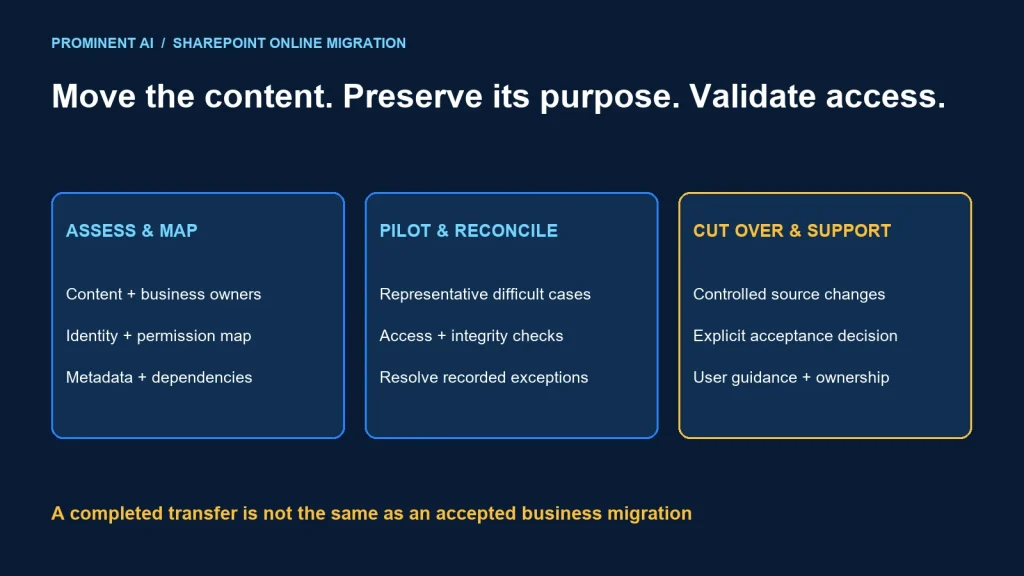
A SharePoint Online migration checklist should cover content, identity mapping, permissions, metadata, dependent processes and cutover acceptance. Moving files is only part of the work. A useful migration preserves the intended access and information structure while giving users a clear route to the new location.
Key takeaways
- Choose tooling for the actual source: file share, SharePoint Server or another supported platform.
- Map users and groups before assuming permissions will transfer correctly.
- Validate metadata, versions, links and business workflows alongside file counts.
- Rehearse a representative wave before committing to cutover.
- Keep the old environment controlled until acceptance and retention decisions are complete.
Start with the source and business purpose
A file-share migration and a SharePoint Server migration do not have identical objects, permissions or tooling behavior. Tenant-to-tenant moves introduce another set of identity and sharing considerations. State the source, target and chosen migration route explicitly before building the checklist.
Microsoft’s SharePoint Migration Tool overview describes the supported role of SPMT for on-premises SharePoint and file-share migrations. Do not interpret that as a universal tool for every cloud-to-cloud migration. Confirm current source support and prerequisites for the selected route.
| Inventory area | Record before migration | Why it matters |
|---|---|---|
| Content | Sites, libraries, folders, files, size and ownership | Wave sizing and business accountability |
| Identity | Users, groups, external collaborators and unresolved accounts | Target access mapping |
| Information model | Columns, content types, terms, views and versions | Usable records rather than a file dump |
| Dependencies | Links, apps, workflows, reports and integrations | Business continuity after the URL changes |
| Lifecycle | Retention requirements, archived material and approved exclusions | Correct handling and retirement decisions |
For a fictional engineering department, current project documents may migrate in the first wave, while obsolete copies require an owner decision. Do not delete, flatten or merge content simply to make the transfer faster. Record exclusions and approval separately.
Agree what success means. “The job completed” is a tool status. Business acceptance means people can find the right content, access it appropriately and continue the processes that depend on it.
How to migrate without losing intended permissions
Microsoft’s permissions guidance explains that identity mapping and the source type affect migrated access. Some source permissions do not have a direct equivalent. Unmapped users can lead to different results than a team expects. Validate the chosen tool’s behavior rather than promising a perfect permission copy.
SPMT settings include permission-preservation and user-mapping choices. Record those settings with the migration run, including whether automatic lookup or an approved mapping file is being used. Review version-history and metadata settings too.
Permission validation checklist
- List source identities and their intended target users or groups.
- Resolve renamed accounts, departed users and unmapped groups with the owner.
- Identify inheritance breaks and unique access on sensitive locations.
- Review external sharing and guest-user requirements.
- Test read, edit and denied access with ordinary target identities.
- Check representative files and folders after each migration wave.
- Record exceptions and require owner acceptance before cutover.
Do not use an administrator account as the only validation identity. An administrator may open content that an ordinary user cannot, while also concealing an accidental broad grant. Both access loss and excessive access are migration defects.
If a source uses a complex permission model, decide whether to preserve it or redesign it. A redesign is a separate approved change with its own tests. Avoid silently converting a difficult access structure into broad target access.
Metadata, versions and compatibility checks
File names and counts do not describe the whole information model. Check required columns, content types, managed terms, dates, version history and document status where relevant. Include a sample of unusual or business-critical items in the pilot.
Microsoft’s assessment-report roadmap identifies areas such as checked-out files, versions, custom permission levels and metadata. Use source-appropriate assessment findings to create remediation work, not merely to produce a report nobody owns.
| Check | Acceptance evidence | Exception response |
|---|---|---|
| Required metadata | Values and allowed terms are correct | Map or remediate with content owner |
| Version history | Agreed versions available under selected settings | Document tool setting and retention decision |
| Document links | Important links open the correct target | Update references and communicate changes |
| Custom process | Workflow or app behaves in the target design | Rebuild or replace through separate tested work |
| Sensitive content | Expected access and handling remain effective | Pause affected wave until reviewed |
Inventory embedded links in documents and references in Teams, reports, scripts and integrations. A successfully copied file can still contain a stale link to the old system. Prioritize the links used in critical workflows rather than assuming every historical reference has equal importance.
Record retention and records-management requirements with the responsible specialists. This checklist does not establish regulatory compliance or replace an organization’s policy review.
Run a representative pilot and reconcile the results
Inventory and classify
        ↓
Map identities + configure target structure
        ↓
Pilot representative content and difficult cases
        ↓
Validate access + metadata + links + business process
        ↓
Resolve exceptions and approve migration wave
        ↓
Controlled cutover + user acceptance + support
Choose a pilot that contains meaningful complexity: a sensitive folder, a common library, important metadata, a large or unusual document and a dependent process. A pilot made only of easy files does not test the migration’s real risk.
Reconcile source and target using agreed identifiers and tool reports. Explain legitimate exclusions, failures and changes rather than comparing one total and declaring success. For critical documents, verify content integrity using supported evidence appropriate to the source and target.
Keep a discrepancy register with source reference, target reference, issue type, owner and resolution. Use sanitized identifiers in shared reports. Do not duplicate confidential content in a ticket simply to show that migration failed.
All examples in this guide are planning artifacts. No tenant migration or measured transfer benchmark was executed to prepare the article.
A controlled SharePoint cutover runbook
The following is a human-readable runbook outline, not a tool configuration file. Confirm whether the selected tool supports the required incremental behavior and test how changed or removed source items are handled.
Wave: engineering-current-projects
Source / target: approved locations recorded separately
Owners: migration lead, content owner, access owner, support lead
Before cutover:
  resolve blocking pilot exceptions
  confirm identity mapping and migration settings
  announce source-change window and user route
  confirm recovery procedure and decision authority
Cutover:
  apply approved source-write control
  complete the tested final synchronization procedure
  reconcile exceptions and critical content
  validate access, metadata, links and business paths
Decision:
  accept wave OR invoke reviewed recovery procedure
After acceptance:
  communicate target access and support route
  retain source according to approved lifecycle decision
Set explicit go/no-go criteria before the window. Examples include unresolved access defects on sensitive content, missing critical documents or a broken process required for the next business day. Assign a decision owner and avoid negotiating acceptance under time pressure.
Recovery is not simply “copy everything back.” Users may have edited the target, and external references may already have changed. Define how the authoritative location, new changes and user communication will be handled if the cutover is rejected.
User adoption and post-migration ownership
Give users practical instructions: where to work, how to find documents, which old locations are read-only and whom to contact. Update navigation and common entry points. A technically correct library still creates friction if users keep opening an old bookmark.
Schedule a focused support period for each wave. Categorize issues as access, missing content, metadata, links or process behavior, then route them to an owner. This is more useful than treating every report as an unspecified migration problem.
Review inactive sharing, orphaned ownership and outdated source references after acceptance. Retire the old system only through an approved lifecycle process. Keep evidence of the accepted target and unresolved exceptions.
If SharePoint also grounds an agent, revalidate the knowledge-source scope and user access after moving content. The Copilot Studio knowledge-source guide explains why retrieval and permissions need their own tests.
Common questions
How do you migrate SharePoint without losing permissions?
Map identities, choose supported permission settings, test representative inherited and unique access, and validate both permitted and denied access in the target. Exact behavior depends on the source and tool.
Does a successful migration job prove the site is ready?
No. Validate metadata, access, important links, dependent processes and user acceptance as well as transfer reports.
Should every old document be migrated?
Use an owner-approved inventory and lifecycle decision. Exclude or archive material only with the appropriate authorization and retention review.
What belongs in a migration pilot?
Include common content and difficult cases such as sensitive access, important metadata, unusual files and dependent workflows.
When can the old SharePoint environment be retired?
After target acceptance, exception review and an approved retention and retirement decision. Keep ownership and recovery requirements explicit.
Plan the move around usable information and safe access
Bring the content inventory, identity model and important business processes. Plan a Power Platform implementation with migration validation and a practical cutover runbook.