
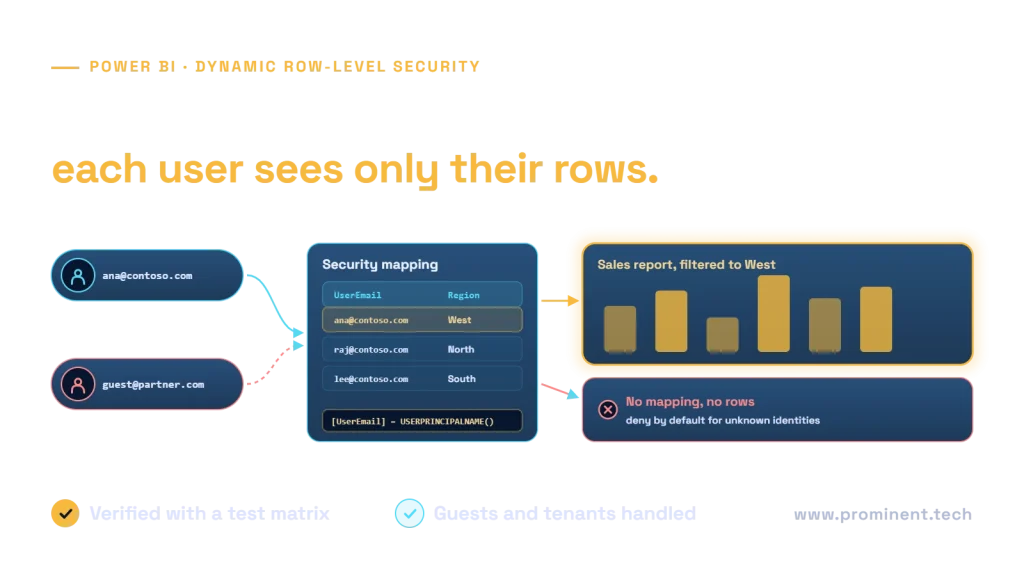
Configure dynamic RLS by mapping a verified viewer identity to authorized business keys, applying a role filter and testing the complete filter path to the facts. Microsoft Entra ID supplies identity and group membership, but the semantic model still needs an explicit authorization design. A signed-in user is not automatically entitled to every row.
Key takeaways
- Define an approved identity-to-scope mapping and its refresh owner.
- Unknown identities must not receive a broad fallback.
- Test actual consumer permissions, not only an editor’s preview.
- Verify detail, totals, exports and every related report against the same entitlement contract.
What dynamic RLS protects
Microsoft’s RLS documentation explains role filters, publishing, membership and testing. In workspaces, RLS constrains Viewers; Admin, Member and Contributor roles have editing privileges and are not restricted by RLS. Keep report consumers out of those elevated roles when their access must be filtered.
RLS filters rows rather than granting or revoking every possible object-level permission. Microsoft’s modeling guidance also notes that filters propagate through active relationships and that membership in multiple roles is additive. A restrictive role does not cancel a separate permissive role.
For a shared analytics product, document the resource boundary before writing DAX. Define which business entities a person may see, who approves that scope and how it is revoked. A report filter or hidden slicer is a user-interface convenience, not a replacement for model authorization.
A small synthetic authorization fixture
Use a non-production fixture before applying the pattern to business records. The following names and amounts are fictional. This tutorial shows a model design and test plan; it does not claim a tested deployment in your Power BI tenant.
| UserUPN | RegionKey |
|---|---|
| analyst-a@example.invalid | 10 |
| analyst-b@example.invalid | 20 |
| lead@example.invalid | 10 |
| lead@example.invalid | 20 |
Create an AccessMap table with these entitlements, a Region dimension with unique region keys and a Sales fact table with one accepted transaction per row. Let the active one-to-many relationship flow from Region[RegionKey] to Sales[RegionKey].
Approved identity-to-region entitlements
                   ↓
Dynamic role filters permitted Region rows
                   ↓ active Region → Sales relationship
Filtered facts → measures → report consumers
For the fixture, include sales of 100 and 50 in region 10, and 200 in region 20. The expected totals are 150 for analyst A, 200 for analyst B and 350 for the lead. An unmapped consumer should see no business rows. These are test expectations, not customer metrics.
Step-by-step configuration
1. Prepare and validate the access mapping
Obtain the identity value actually presented in the target consumption scenario. Do not guess a UPN from a person’s display name or assume their email alias is identical. Validate mapping rows against approved entitlements, remove accidental duplicates and reject missing region keys.
Keep access-map administration separate from ordinary report editing. A person who can insert their own entitlement is changing authorization. Record approvals and revoke mappings when responsibilities change.
2. Define a role on the Region table
In Desktop, open Modeling → Manage roles, create a role and use the DAX editor for its Region filter. The following illustrative predicate evaluates the candidate region against the access map:
VAR ViewerUPN = USERPRINCIPALNAME()
VAR CandidateRegion = 'Region'[RegionKey]
RETURN
    NOT ISBLANK(ViewerUPN)
        && NOT ISBLANK(CandidateRegion)
        && COUNTROWS(
            FILTER(
                'AccessMap',
                'AccessMap'[UserUPN] = ViewerUPN
                    && 'AccessMap'[RegionKey] = CandidateRegion
            )
        ) > 0
For this small fixture, leave AccessMap disconnected from the business relationships and also restrict its own rows with 'AccessMap'[UserUPN] = USERPRINCIPALNAME(). This prevents exposing other users’ mappings through ordinary model queries. Hiding the table is useful for authoring clarity, but hiding alone is not a security control.
This direct lookup predicate is an easy-to-inspect teaching pattern, not a universal production optimization. At larger scale, evaluate an entitlement bridge and its security propagation deliberately. Avoid adding ambiguous bidirectional paths simply to make a filter appear to work.
3. Test the model in Desktop
Use View as with the role and a representative identity. Compare the fixture’s permitted region keys and totals. Test an unknown identity and empty mapping as carefully as the successful case. A blank visual alone is insufficient evidence: inspect detail rows and the expected reason for denial.
4. Publish and assign approved consumers
Publish the model and report, then configure role membership in the service. The UPN function returns the current identity; it does not add people to the role. Validate the supported membership approach for the intended internal or external audience.
5. Verify the real consumption path
Use Test as role where supported, then test with an actual appropriately restricted consumer. Microsoft documents limitations for Test as role with DirectQuery and SSO. A successful simulation does not replace testing the access path people will actually use.
For screenshots in an implementation record, capture the role predicate, active relationship, role membership and the restricted viewer result using synthetic data. No tenant screenshots are fabricated here. Keep identity and entitlement evidence in an access-controlled test record.
Verification checklist
| Case | Expected fixture result | Evidence to retain |
|---|---|---|
| Analyst A | Region 10; total 150 | Detail keys and total under consumer permissions |
| Analyst B | Region 20; total 200 | Region 10 absent from detail and drill-through |
| Lead | Regions 10 and 20; total 350 | Exactly the approved combined scope |
| Unknown or revoked identity | No business rows | No permissive fallback or extra role grant |
| Mapping refresh fails | Approved failure/revocation policy is followed | Alert, freshness state and owner decision |
| Changed role membership | Union of grants matches intended scope | Full membership review, not one role in isolation |
Inspect all fact tables and summary tables that the report can query. A secured detail table with an unfiltered summary can still expose information. Test exports, drill-through, connected reports and any additional consumption tools that are allowed by policy.
Entra identities and tenant boundaries
For external guests, use the identity resolved in the resource tenant and verify actual behavior. Microsoft’s RLS documentation calls out limitations involving some guest/group combinations. Test the specific audience and configuration rather than treating an internal-user test as evidence for guests.
For embedded multi-customer analytics, the server must derive effective identity and authorized customer scope from trusted authentication and entitlement data. A browser-supplied customer identifier must not select an unrestricted scope. Assess separate models or workspaces when isolation and operating requirements justify them.
Entra authentication, application authorization, semantic-model filtering and source access are separate checkpoints. Document which one enforces each boundary. Validate recovery and incident response as well as a successful report view.
Operate the mapping as a security dependency
A stale mapping can retain access after a person changes roles. Define refresh freshness, revocation timing and an accountable owner. Model refresh failures should generate an actionable signal; they should not quietly extend an unreviewed authorization state indefinitely.
Keep a regression fixture with single-scope, multi-scope, unknown and revoked users. Re-run it after relationship changes, new facts, aggregation additions and deployment. Record expected permitted keys rather than relying only on screenshots of charts.
Measure the representative restricted workload as well. Use the Power BI performance runbook to compare latency while preserving access semantics.
Common questions
How do you configure dynamic RLS in Power BI?
Map verified identities to approved scopes, define a dynamic role predicate, publish and assign consumers, then test filter propagation and the real viewer experience.
Does RLS restrict workspace administrators?
No. Workspace Admin, Member and Contributor permissions are not constrained by RLS. Use appropriately restricted consumer permissions for filtered access.
Does a hidden mapping table protect entitlements?
Hiding alone does not enforce authorization. Apply an appropriate security design to the mapping and test its query exposure.
What should an unknown identity see?
The model should deny unapproved scope rather than fall back to all rows. Include that negative case in regression tests.
Can Desktop role testing prove guest or embedded access is correct?
No. Test the actual tenant identity, permissions and consumption path in addition to supported simulations.
Make analytics access explicit and testable
Bring your model relationships, consumer roles and entitlement lifecycle to a review. Request a data engineering pipeline assessment to design and verify an appropriate analytics access model.