
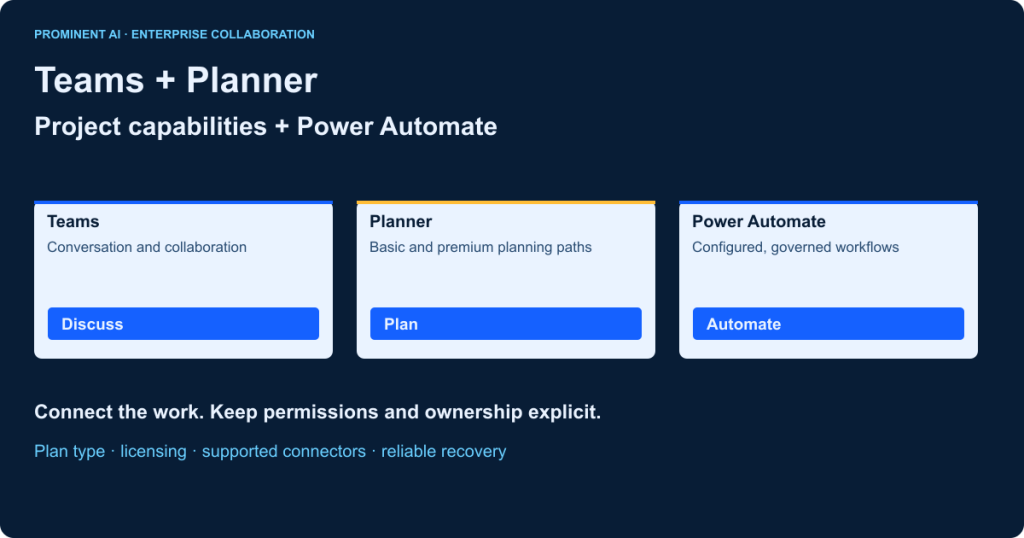
Teams Planner integration brings task collaboration into the place your team discusses its work. Add the Planner app for your personal work overview, or add an appropriate plan as a channel tab for a shared project. Use Power Automate’s Workflows experience for configured task creation, reminders and business-system handoffs. Choose the automation path only after identifying whether the plan is basic or premium: the standard Planner connector supports basic plans, not premium scheduling data.
In this guide, “Project” means advanced project-management capabilities now presented through Planner premium, or a clearly identified legacy product. It does not mean reinstalling the retired Project app in Teams. Project desktop remains distinct. A reliable implementation also needs access controls, licensing checks, connection ownership and duplicate-safe recovery; adding a tab alone does not synchronize every system or grant everyone access.
Key takeaways
- Distinguish a personal Planner app view from a shared channel plan.
- Check basic-versus-premium plan type before choosing a connector.
- Use supported Workflows and current actions rather than retired Project instructions.
- Define authoritative task data and explicit synchronization rules.
- Test duplicate creation, denied access and owner departure before rollout.
What is Microsoft Teams Planner integration?
Microsoft Teams and Planner integration exposes plans and assigned work in a collaboration interface. Teams supplies conversation context; Planner holds task and plan information; Power Automate runs configured workflows. Microsoft 365 group membership and related document services can support collaboration, but a Teams tab is not an automatic cross-system synchronization engine. See Planner app administration.
How Teams, Planner, Project and Power Automate work together
| Component | Primary purpose | Teams experience | Integration method | Important limitation |
|---|---|---|---|---|
| Microsoft Teams | Conversation and collaboration | Apps, channels and tabs | Native surfaces plus configured workflows | A tab does not override underlying permissions |
| Planner basic | Collaborative task plans | Planner app or eligible channel plan | Basic Planner connector for supported operations | Do not assume premium projects appear |
| Planner premium | Advanced project planning | Premium capabilities through Planner | Supported premium/Dataverse scheduling path | Feature and integration entitlements differ |
| Project desktop | Desktop scheduling | Separate product; explicit integration needed | Supported exchange or custom integration | No universal automatic Planner synchronization |
| Power Automate | Event/action automation | Workflows app and message actions | Cloud flow connectors and approved APIs | Plan type, environment and ownership matter |
| SharePoint / groups | Documents, request records and collaboration access | Linked team resources | Supported connectors and memberships | Document and task access must be checked separately |

In the reference architecture, users interact with Teams, then a configured integration reaches the correct task service. Business-system updates are an explicit branch with a defined contract. Identity, data policies and monitoring cover the path. No diagram arrow means every task field is synchronized in both directions.
Prerequisites for Teams Planner integration
- Confirm the actual Microsoft 365, Teams and Planner entitlements assigned to each role.
- Identify basic or premium plan type and required advanced views.
- Confirm the team, channel, plan and Microsoft 365 group membership where applicable.
- Allow the relevant apps and actions through tenant administration.
- Choose the Power Automate environment and required connector access.
- Review data loss prevention (DLP) rules, external sharing and consent requirements.
- Name the plan owner, workflow owner, connection owner and support contact.
- Prepare a pilot plan with non-sensitive test data and an acceptance checklist.
Do not assume a subscription name alone proves every user, connector and automation scenario is licensed. A premium Planner feature and a premium Power Automate connector are separate checks. Administrative consent, app availability and environment security can block a technically valid workflow. Record those constraints before configuration.
How to add Microsoft Planner to Microsoft Teams
Personal app: organize your own work
- Open Teams with the intended work account. Find Planner in Apps or the app navigation, subject to tenant policy.
- Open the Planner app and review personal/assigned work and available plans. This view aggregates supported work for you; it is not the same as creating a shared channel plan.
- If the app is missing, ask the Teams administrator to check availability and policy. Do not bypass the restriction with another account.
Microsoft documents the Planner app experience. Labels and available views can vary by tenant, license and rollout.
Channel tab: collaborate on a shared plan
- Open the intended team and supported channel. Use its Add a tab control and select Planner.
- Create an appropriate basic or premium plan, or select an eligible existing plan. Confirm its identity rather than relying only on a similar display name.
- Configure buckets, task titles, owners and dates. Enable only views supported by the users’ licenses.
- Confirm the actual plan membership and document access. Test with an ordinary team member as well as the owner.
- Create, assign and complete a test task. Verify that the intended colleagues can collaborate and an unauthorized user cannot.
Follow Microsoft’s current channel-tab procedure. Private/shared channel support and eligible existing plans must be validated in your tenant; do not apply an old blanket limitation without checking current guidance. Channel membership does not justify broadening a plan’s access to unrelated users.
How to integrate project-management capabilities with Teams
Project for the web and the Project and Roadmap apps in Teams were retired in August 2025, with users directed to Planner. Project Online reached its announced retirement date on 30 September 2026. Project desktop is a separate product and was not retired by that announcement. These distinctions matter when evaluating old tutorials or migration plans. Reference: Microsoft Planner product FAQ.
For advanced planning, assess Planner premium capabilities such as timeline/dependency planning and the licensed views required by the project manager. Validate milestone and portfolio needs against the selected subscription; not every basic user has every advanced feature. The plan-management guide explains the current views without implying a uniform license for all of them.
For a legacy Project Online integration, inventory the data, reports, custom fields, schedules, workflows and API dependencies that were actually retained or migrated. Do not promise that a retired endpoint remains accessible or that Planner reconstructs missing data. Project desktop file exchange and premium-plan integration also need a documented mapping; sharing a product family name does not create live synchronization.
Premium automation is a separate engineering path
For supported scheduling entities, evaluate documented Dataverse and Project scheduling APIs in the applicable product/environment. Do not blindly write schedule-managed tables through generic CRUD: scheduling semantics and supported operations matter. The scheduling API reference describes permissions and limitations, while the V3 Power Automate example describes a specific integration approach. Verify applicability to your premium environment before implementation; a Project Operations example is not universal authorization for every Planner tenant.
Connect Teams and Planner using Power Automate: message to task
This illustrative procedure targets a Planner basic plan in a commercial tenant. It uses supported connector operations but has not been executed in your tenant. Microsoft’s message-trigger guidance requires the default environment for this trigger; verify the Actions app and sharing rules. Guest/external-user and sovereign-cloud limitations also apply. See selected-message flows and the Teams connector reference.
- Open Workflows in Teams or the supported Power Automate designer. Confirm the account and default environment. The Teams Power Automate app is now called Workflows; see installation guidance.
- Create an instant cloud flow using the Teams For a selected message trigger. Name it clearly so users recognize the message action. Configure supported input fields for a short title, intended owner and due date where required.
- Validate the requester and allowed destination. Fix the approved group, basic plan and bucket in configuration for the pilot rather than letting callers write into arbitrary plans.
- Select the current non-deprecated Planner Create a task action. Map the plan, title, optional bucket, assigned-user identifiers and dates according to its schema. Validate the owner and convert the business due date to the agreed time zone/format.
- Capture the returned task identifier. If needed, use a supported task-details operation to add a controlled source-message reference; avoid copying sensitive message bodies into a more widely shared plan.
- On successful creation, post a concise Teams confirmation with the task reference. On failure, notify the requester/support route with a correlation ID and no secrets.
- Save and test from a selected Teams message. Validate the actual task, owner, due date and destination—not merely a green flow run. Share the flow through its supported run permissions if colleagues should use it.
- Test an invalid destination, unauthorized user, connection failure and repeated request. Add a persistent request-to-task mapping before broader rollout so retries do not silently duplicate business work.
| Operation | Input and permission | Expected result | Implementation check |
|---|---|---|---|
| Teams message trigger | Selected message; supported user and shared flow access | Context plus approved request inputs | Default environment and app policy |
| Validation/deduplication | Requester, destination and stable request ID | Accepted request or safe rejection | Atomic request reservation in chosen store |
| Planner task creation | Basic plan access and validated task fields | Task identifier and task data | Current non-preview action; no deprecated version |
| Task details / confirmation | Created task ID and allowed destination | Traceable context and success notice | No sensitive content leakage |
| Failure handling | Action error and correlation ID | Operator-visible recoverable exception | Do not rerun creation blindly |
The Planner connector reference states basic-plan support and distinguishes current, preview and deprecated actions. Check its live schema while configuring. Do not use a premium plan identifier as a “custom value” to bypass that support boundary.
A duplicate-safe request is more than a lookup
Two concurrent runs can both pass “task not found.” Reserve a unique request key atomically in an approved store, record the created task ID, and reconcile uncertain outcomes. If creation succeeded but notification failed, resend the notice rather than create a second task. Design a recovery state for the crash between remote task creation and local mapping. The exact persistence and licensing depend on your implementation; this is an architectural requirement, not a built-in guarantee of the example flow.
Seven practical automation workflows for enterprise teams
| Business problem | Trigger and workflow | Value and requirements | Risks/licensing to verify |
|---|---|---|---|
| Conversation action gets lost | Selected message → validated basic task → confirmation | Turns an accepted request into owned work | Run permissions, sensitive text and duplicate requests |
| Assignee misses a task | Supported assignment event or scheduled reconciliation → notify | Makes ownership visible without manual copying | Personal “assigned to me” scope is not every employee’s event feed |
| Overdue work lacks escalation | Recurrence → read eligible tasks → date/status condition → notify owner | Escalates exceptions on an agreed schedule | Time zones, connector limits, repeated-alert suppression |
| Status reviews are inconsistent | Scheduled flow → relevant task summary → Teams update | Supports a regular review cadence | Freshness, recipient access and over-notification |
| SharePoint request needs delivery work | New approved request record → validated task and stored mapping | Preserves intake-to-delivery traceability | Source permissions and update-loop prevention |
| Handoff needs approval | Approved decision → create/route task → record outcome | Separates review from delivery ownership | Approval identity, expiry, connector entitlement and audit evidence |
| PMO needs consolidated reporting | Supported read/API integration → governed report or synchronization | Connects project information with business context | Premium schema/API/licensing; custom mapping and conflict ownership |
These are illustrative patterns, not preinstalled templates or completed client projects. Before adding a notification flow, check whether native notifications already solve the problem. For synchronization, specify one authoritative owner per field, delete/completion behavior, conflict resolution and reconciliation. Reporting and bidirectional editing are different integration scopes.
Planner basic vs Planner premium vs Project desktop
| Decision | Planner basic | Planner premium | Project desktop |
|---|---|---|---|
| Primary user | Team organizing collaborative tasks | Project teams needing licensed advanced planning | Scheduler using a desktop planning tool |
| Collaboration | Shared plans with configured membership | Planner collaboration with appropriate premium access | Explicit collaboration/exchange arrangement |
| Task management | Boards, assignments and supported task views | Tasks plus advanced project capabilities | Desktop project schedule |
| Dependencies/timeline | Do not assume premium scheduling features | Check licensed dependency/timeline capabilities | Verify features of installed version/edition |
| Advanced planning | Evaluate requirements before extending | License and feature dependent | Desktop capabilities and lifecycle depend on edition |
| Teams access | Planner app/tab where supported | Planner premium experience where supported | No automatic live Planner link implied |
| Automation | Standard Planner connector for supported basic operations | Validated premium/Dataverse scheduling integration | Supported desktop/file/API integration design |
| Data model | Basic task/plan interface | Scheduling-aware environment/data requirements | Project file and configured enterprise connections |
| License decision | Eligible subscription and assigned access | Premium features plus separate automation rights | Desktop entitlement/version plus integration rights |
| Best fit | Practical shared task coordination | Advanced collaborative project planning | Detailed desktop scheduling where required |
Choose based on required scheduling and operating semantics, not a visual resemblance. A premium plan’s availability in Teams does not establish compatibility with the basic connector. A desktop user’s ability to open a file does not prove colleagues can edit a Planner project or that an unattended flow has sufficient rights.
Enterprise Teams and Power Automate integration architectures

| Architecture | Ownership and components | Recovery and integration boundary | Choose when |
|---|---|---|---|
| A. Small team | Teams + basic plan + approved standard flows; plan owns tasks | Request mapping and flow owner; no implicit enterprise sync | A team needs bounded task creation/reminders |
| B. Growing organization | Teams + Planner + SharePoint intake + governed reporting | Intake owns request; plan owns delivery state; reconcile explicit mappings | Several groups need a repeatable controlled intake |
| C. Enterprise PMO | Teams + premium planning + applicable Dataverse/scheduling API + enterprise workflows | Scheduling service owns plan semantics; licensed identity and monitored integration layer | Advanced planning, business systems and governance justify custom integration |
“Small,” “growing” and “enterprise” describe complexity, not arbitrary headcount thresholds. Each architecture requires membership review, connection continuity, exception ownership and a tested restore/recovery procedure. Architecture C must validate API and licensing applicability before the diagram becomes a deployment plan.
Microsoft Teams, Planner and Power Automate licensing
Build an entitlement matrix by user role and flow, not just a list of subscriptions. Confirm eligible Microsoft 365/Teams access, basic Planner rights, premium planning features, and Power Automate standard/premium connector use. Dataverse integration and scheduled/unattended operating arrangements require their own assessment. Consult Planner subscriptions and the Power Platform licensing FAQ alongside the current licensing guide and your agreement.
Planning formula: incremental monthly licenses + applicable process/capacity charges + integration services + support effort. Count only missing entitlements, avoid double-counting bundled rights, and assess each person/process that requires access. This article intentionally gives no unverified price. If pricing is added later, record country, currency, effective date, term, user/process basis and tax treatment. The fact that Teams can display a flow does not make every connected service free.
Security, compliance and workflow ownership
Use Microsoft Entra identities and least privilege for users and connectors. Review team/plan membership and sensitive task fields before exposing a shared plan. DLP policies govern connector combinations and data movement; do not work around a blocked integration by moving it to an unmanaged environment. See Power Platform data policies.
Document who owns the flow and who owns each connection. A colleague becoming a co-owner does not automatically solve every connection dependency. Test employee departure, expired credentials and ownership transfer through supported administration. See cloud-flow ownership guidance. Avoid tying critical operations to an unmanaged personal account; any service-identity pattern still needs validated support, licensing and access governance.
Separate development and production configuration where supported, restrict run-history access, redact sensitive values, define retention and retain required business evidence outside ephemeral diagnostics. Selected-message trigger environment constraints must be reconciled with governance rather than ignored. Correlate failures without copying private conversation contents into logs. Test retries, partial completion, connection rotation and support escalation before rollout.
Common integration problems and troubleshooting
| Problem | Likely cause | Diagnostic check | Resolution |
|---|---|---|---|
| Planner missing | App/tenant policy or entitlement | Check intended account, license and allowed apps | Administrator resolves approved access |
| Plan not visible | Membership or wrong plan context | Compare actual plan ID/type and user access | Correct membership/destination through owner |
| Permission error | Connection identity lacks access | Identify the executing connection and resource | Grant only required approved permission |
| Wrong group/plan | Similar names or copied configuration | Verify IDs and environment | Parameterize approved identifiers |
| Premium plan absent in connector | Basic-only connector boundary | Confirm plan type before debugging dropdown | Use supported premium integration; do not bypass |
| Message trigger unavailable | Default environment, app policy or sharing | Review current trigger restrictions | Correct supported setup or choose another approved trigger |
| Disabled/orphaned flow | Owner/connection departure | Inspect ownership, connection and run history | Supported transfer/reconnection with continuity test |
| Duplicate tasks | Retries or concurrent requests | Trace source key and remote task ID | Atomic reservation plus reconciliation |
| Notification delayed | Polling, throttles or queued run | Review timing, errors and operation limits | Set realistic cadence and bounded retries |
| Old Project instructions fail | Retired application/endpoint | Check date and named product | Redesign against current Planner capability |
| License mismatch | Feature and flow rights differ | Map actual roles, plans and connectors | Resolve entitlements before rollout |
| DLP blocked flow | Disallowed data route | Inspect applicable policy with administrator | Redesign approved boundaries, not evasion |
Implementation checklist and rollout roadmap
| Phase | Deliverable | Acceptance evidence |
|---|---|---|
| Discover | Workflow inventory, source of truth and exceptions | Business owner approves task and outcome semantics |
| Assess | License, tenant and security matrix | Required identities/features/interfaces verified |
| Design | Mappings, deduplication and recovery contract | No unresolved ownership or permission boundary |
| Pilot | Configured plan and flow with test data | Task appears in correct plan with correct assignment/date |
| Test | Access, retry, concurrency and failure results | No duplicate task in tested retry/concurrency cases; error route works |
| Roll out | Owned production configuration and runbook | Support owner can recover a deliberately failed request |
| Operate | Monitoring and improvement backlog | Stalled runs, ownership changes and entitlement drift reviewed |
Define measurable acceptance without inventing a success percentage: an authorized message produces the intended task, an unauthorized request is rejected, repeated delivery maps to the same task, and a failed notification can be recovered without duplicate creation. Record test inputs and evidence. Set project duration after the actual tenant and integration constraints are known.
When should you consider an integration partner?
Professional support becomes useful when the work crosses departments, premium scheduling semantics, retired Project integrations, business-system contracts or regulated data boundaries. The value is a testable design and operating model, not simply a working demo. Ask for the entitlement assumptions, permission map, reconciliation behavior and owner-departure plan before approving the implementation.
How Prominent AI Services LLP can help
Prominent’s published API and system integration services include documented contracts, authentication, mappings, error handling and monitoring. Those disciplines are relevant to Microsoft 365 workflows that must connect project activity with business systems. A practical engagement can begin with workflow discovery and a feasibility assessment, then define the supported implementation and handover scope. Premium Planner, Dataverse and Power Platform work should be evaluated against your actual tenant, interfaces and licenses before commitments are made. Bring the process, plan type, existing flows and ownership constraints to the discussion. No certification, fixed timeline, client result or guaranteed saving is implied.
Frequently asked questions
How do I integrate Microsoft Planner with Teams?
Use the Planner app for your work overview, or add an eligible shared plan as a channel tab. Confirm the intended plan, member access and available views, then test task creation and assignment with an ordinary team member. Add Power Automate only for behavior beyond the native collaboration experience.
Is Planner included in Microsoft Teams?
Planner is available as an integrated app experience, subject to tenant configuration and licensing. Basic and premium capabilities have different entitlement requirements. Do not assume that being able to open Teams gives every user every advanced planning feature, or that every Power Automate connector is included in the same subscription.
Can I use Power Automate with Microsoft Planner?
Yes, using supported interfaces for the actual plan type. The standard Planner connector currently supports basic plans. Premium scheduling integration requires a separately validated approach, with applicable environment, API, identity and licensing requirements. Choose a supported operation and test its behavior rather than assuming all Planner plans share one automation contract.
Can I create Planner tasks from Teams messages?
Yes, a selected-message workflow can create a basic Planner task and return a confirmation when its prerequisites are met. Validate the trigger’s environment, app policy and user restrictions. Use approved destinations and a durable request-to-task mapping so repeated submissions or retries do not produce unwanted duplicates.
What happened to Project for the web?
Its capabilities were brought into the Planner experience, and the separate Project for the web and Project/Roadmap Teams apps were retired in August 2025. Use current Planner guidance. Project Online and Project desktop are different products with different lifecycle implications; the shared Project name does not make their data automatically interchangeable.
Can Planner premium plans be automated with Power Automate?
Supported premium integration can involve Dataverse and scheduling APIs, but applicability must be verified for the product, environment and operation. The basic Planner connector is not a premium-project interface. Confirm permissions, scheduling semantics and licensing before treating a sample flow from another Microsoft product as a deployable premium Planner solution.
Can Microsoft Project desktop synchronize with Planner?
Do not assume a universal automatic synchronization. Define the supported exchange or integration method for the actual desktop version, Planner plan type and required fields. Scheduling behavior, edits, conflicts and ownership need an explicit mapping. Opening project-related information in Teams does not establish a two-way live connection to a desktop file.
What licensing is required for Teams Planner integration?
It depends on the users, plan features, connector path and operating arrangement. Check Teams/Microsoft 365 eligibility, basic or premium Planner rights and Power Automate entitlements separately. Dataverse or custom integration may add requirements. Use the current licensing guide and your agreement rather than relying on a general statement that everything is bundled.
Can multiple teams share one Planner plan?
Access depends on the plan’s supported membership and sharing model, not merely how many tabs link to it. Validate each intended user’s underlying permissions and channel context. A tab or URL should never be treated as a way to bypass the plan’s access controls. Test ordinary member access before adopting a cross-team design.
How can I automate project status notifications?
Use a supported event or scheduled read, apply clear status conditions, and send a limited update to authorized recipients. Define freshness, time zones and suppression so the same overdue task does not generate uncontrolled reminders. For premium plans, validate the appropriate read interface instead of assuming the basic connector can retrieve project scheduling data.
Why is my Planner plan not visible in Power Automate?
Check plan type first, then connection identity, membership, environment and selected identifiers. Premium plans do not become supported by the basic Planner connector simply by entering their IDs manually. Resolve an actual access/configuration issue through approved administration, or design a supported premium integration path when the plan type requires it.
Is Planner suitable for enterprise project management?
It can support enterprise work when the selected basic or premium capabilities fit the planning requirements and governance model. Evaluate scheduling depth, portfolio/reporting needs, permissions, integrations and operating ownership. A successful enterprise deployment requires more than adding the app: licensing, reconciliation, recovery and lifecycle management must match the organization’s responsibilities.
Sources checked 1 November 2026. Procedures and workflows are illustrative and require tenant validation; no production execution, license quote or customer outcome is claimed.